Welcome to Computer Tips
| Family Photo's | Our Pets | Our Getaway | |
| Jokes | Midi Page | Recipes | Computer Tips |
Color Chart
| FFFFFF | FFFFCC | FFFF99 | FFFF66 | FFFF33 | FFFF00 |
| FFCCFF | FFCCCC | FFCC99 | FFCC66 | FFCC33 | FFCC00 |
| FF99FF | FF99CC | FF9999 | FF9966 | FF9933 | FF9900 |
| FF66FF | FF66CC | FF6699 | FF6666 | FF6633 | FF6600 |
| FF33FF | FF33CC | FF3399 | FF3366 | FF3333 | FF3300 |
| FF00FF | FF00CC | FF0099 | FF0066 | FF0033 | FF0000 |
| CCFFFF | CCFFCC | CCFF99 | CCFF66 | CCFF33 | CCFF00 |
| CCCCFF | CCCCCC | CCCC99 | CCCC66 | CCCC33 | CCCC00 |
| CC99FF | CC99CC | CC9999 | CC9966 | CC9933 | CC9900 |
| CC66FF | CC66CC | CC6699 | CC6666 | CC6633 | CC6600 |
| CC33FF | CC33CC | CC3399 | CC3366 | CC3333 | CC3300 |
| CC00FF | CC00CC | CC0099 | CC0066 | CC0033 | CC0000 |
| 99FFFF | 99FFCC | 99FF99 | 99FF66 | 99FF33 | 99FF00 |
| 99CCFF | 99CCCC | 99CC99 | 99CC66 | 99CC33 | 99CC00 |
| 9999FF | 9999CC | 999999 | 999966 | 999933 | 999900 |
| 9966FF | 9966CC | 996699 | 996666 | 996633 | 996600 |
| 9933FF | 9933CC | 993399 | 993366 | 993333 | 993300 |
| 9900FF | 9900CC | 990099 | 990066 | 990033 | 990000 |
| 66FFFF | 66FFCC | 66FF99 | 66FF66 | 66FF33 | 66FF00 |
| 66CCFF | 66CCCC | 66CC99 | 66CC66 | 66CC33 | 66CC00 |
| 6699FF | 6699CC | 669999 | 669966 | 669933 | 669900 |
| 6666FF | 6666CC | 666699 | 666666 | 666633 | 666600 |
| 6633FF | 6633CC | 663399 | 663366 | 663333 | 663300 |
| 6600FF | 6600CC | 660099 | 660066 | 660033 | 660000 |
| 33FFFF | 33FFCC | 33FF99 | 33FF66 | 33FF33 | 33FF00 |
| 33CCFF | 33CCCC | 33CC99 | 33CC66 | 33CC33 | 33CC00 |
| 3399FF | 3399CC | 339999 | 339966 | 339933 | 339900 |
| 3366FF | 3366CC | 336699 | 336666 | 336633 | 336600 |
| 3333FF | 3333CC | 333399 | 333366 | 333333 | 333300 |
| 3300FF | 3300CC | 330099 | 330066 | 330033 | 330000 |
| 00FFFF | 00FFCC | 00FF99 | 00FF66 | 00FF33 | 00FF00 |
| 00CCFF | 00CCCC | 00CC99 | 00CC66 | 00CC33 | 00CC00 |
| 0099FF | 0099CC | 009999 | 009966 | 009933 | 009900 |
| 0066FF | 0066CC | 006699 | 006666 | 006633 | 006600 |
| 0033FF | 0033CC | 003399 | 003366 | 003333 | 003300 |
| 0000FF | 0000CC | 000099 | 000066 | 000033 | 000000 |
| Color Chart Provided by - Shannado-Heaven.net | |||||
How to Remove Hot Bar
First off, close your browser so that you are certain Hotbar is not running. Go to Start, Control Panel, Add/Remove Programs. Look for Hotbar on the list, and choose it for removal. Once this is done, you will have to open your email program so you can restore your ability to send pictures and stationery in your email, as Hotbar disables this feature in Outlook Express. CLICK HERE for help on how to restore this ability.
The following page gives Windows Registry entries you can remove as well, to clean it completley from your system: CLICK HERE. To get to the Windows Registry, click Start, then Run, then type in regedit.
Keep in mind that you must be VERY careful when editing/deleting in Regedit; if you are uncomfortable with this, you may want to have someone with experience do it for you. Once something is deleted in Regedit, it cannot be retrieved. Its gone for good, so be very careful when choosing things you are going to delete. Deleting something you should not in your registry can cause your windows to not open or work properly.
If you don't feel comfortable editing the Windows registry, we've found a free program that can completely remove Hotbar. It's called Spybot Search and Destroy. You can get more information and/or download it by CLICKING HERE.
Spyware - Adware
Is your computer doing more than you expect it to do? Probably! Yet another reason why it may seem that web site pages are loading slowly: Is that there is software on your computer that is designed to obtain and send your personal information to its makers. While connected to the internet, your pc could be sending a continuous data stream to one or more unethical advertising companies.
How?
Remember those free programs you installed and did not read the fine
print? Or you
know that cute little cursor on your pc that suddenly appeared out of
nowhere
when you where viewing a website, you know the one that looks so harmless?
Today a
program could be installed on your computer without your knowledge or
consent,
simply by visiting a website that supports this kind of practice. Not only
could you
have programs on your pc doing this, but you could also have numerous
little spies in
your temporary internet files that are capable of installing programs such
as these.
That is one reason we recommend you
CLEAN THEM OUT on a regular basis.
These programs leave backdoors open for hackers and they can add Trojan horses into your system. They include auto install and auto update features, they can disable or bypass your uninstall features, they can monitor your keystrokes on or off line, scan files, access your word processor and chat programs, change your homepage, display advertising content while online or offline, they can read, write and delete files, and they do this while sending information back to the marketing companies. Many of these programs, can not be deleted from your system by normal methods, they leave residual components behind that will continue to monitor your actions and they will try to reinstall themselves.
What to do?
First and foremost, we highly recommend that if you have Internet
Explorer 6 you
follow the following steps.
With Internet Explorer 6 Open:
Click the tools menu. Then select Internet Options. Click the Security
Tab.
Click the box that says Custom Level. Scroll down to: "Installation of
desktop items"
Click the circle that says "Prompt". Scroll down to:
"Software Channel
Permissions"
Click the circle that says "High Safety"
Then click the "OK box", this will return you to the Internet Options
security tab,
again click the "OK box". (This will cut down on some of the immoral
installs).
To prevent access to particular sites thru Internet
Explorer:
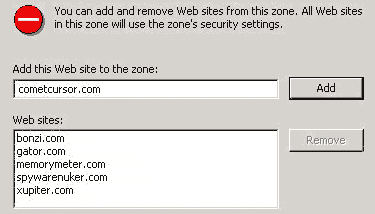
With Internet Explorer open, click on tools, then internet options. Click
on the Security tab, then click on Restricted sites once to highlight it,
click on the sites button. Add the sites you wish to restrict access to by
typing them one by one into the top box and then clicking the add button.
See the image below, it includes some sites we blocked due to spyware
issues. When you are done adding, click "OK" and then "OK" again.
To Prevent an exploit of Windows Messenger service, which will resolve a particular type of advertisement pop-up from occurring, (Windows 2000 & XP), TURN OFF the Messenger service by following these steps:
Click Start, and then point to Settings, and then click Control Panel.
Double-click Administrative Tools.
Double-click Services.
Double-click Messenger.
In the Startup type list, click Disabled.
Click Stop, and then click OK.
Highly recommended: you could also download and install a Free copy of AD-AWARE or SPYBOT these programs can not only scan your system for these programs, but they can safely remove them as well. Please note that SpyBot may be better suited for more experienced users.
Finally, we also highly recommend you get and install a firewall such as ZONE ALARM. You can obtain a free version of this program that will alert you of any program on your machine that attempts to access the web, and you can then stop it dead in its tracks!
Outlook Express Carets
Here is a tip to keep those ugly >>
(carets) out of mail, when you reply or
forward mail.
1. Click on Tools/OPTIONS on the main Outlook Express Toolbar (not the
compose window toolbar)
2. Click the "Send" tab at the top
3. Click the "HTML Settings" button next to Mail Sending Format
4. Uncheck "Indent Messages On Reply"
5. Click OK
6. Click the "Plain text settings" Button
7. Uncheck "Indent the original message with > when replying or
forwarding
8. Click OK
9. On the main dialog window click "Apply" "OK"